
Radio Music Quick Start Guide ←
Radio Music is not a complicated module.
It’s a simple way to play audio files from your Eurorack modular.
There is a lot of depth beneath the surface, which you can learn about in the reference guide.
I think Dot’s Quick Start Video is a great way to get to know the module.
Before you start ←
- You’ll need to find a Micro SD card. Cards are now more reliable than they were in 2014 when Radio Music first came out, but if you have the choice, choose a high-quality Sandisk or Kingston card.
- Either put your own files onto the SD Card or download the Suggested Audio bank to get started. You can put up to 800 uncompressed files onto the card of essentially unlimited length.
- Insert the card into the module with the gold contacts on the left.
- Patch the output to a mixer or headphone module.
- By default, files play constantly, looping at the end. Think of Radio Music as an oscillator, use a VCA or Filter if you want to to interrupt the sound. You can control looping with the Radio Remote or by editing settings.txt
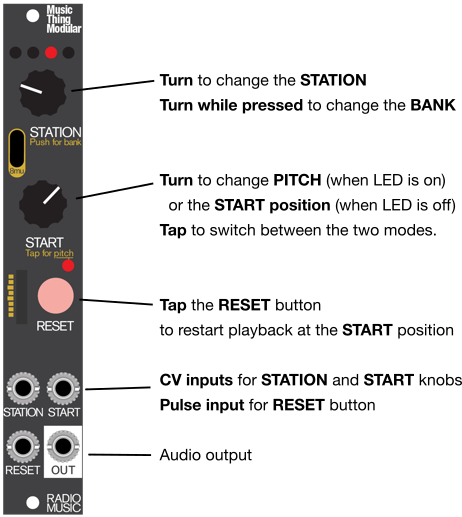
- Turn the STATION knob to choose a sound. By default, these files play ‘in the background’ like a radio, so if you switch between a folder of long radio recordings, they don’t restart from the beginning when you select them.
- Radio Music contains 16 banks of sounds (or Stations, or Samples or Files, it’s all the same). Push and turn the STATION knob to change bank.
- Press RESET to restart the sample.
- Turn START to set where the sample begins.
- Tap START to enter pitch mode, then turn the START knob change speed and direction. By default, this is a smooth tape-style speed change. At 5 o’clock the tape is playing forward at normal speed. At 7 o’clock it’s playing backwards at normal speed. At 12 o’clock the tape is playing very slowly, so may be silent.
- That’s really all there is too it.
- There is a folder called settings.txt on the SD Card which contains dozens of options to customise how files play. These are fully documented in the reference guide. You can put a different settings.txt into each folder if you like.
- The optional Radio Remote gives faster access to these settings and more playable speed and loop controls.
- You can discuss Radio Music and ask questions at the Workshop System Discord - if you need an invite, get one here.
With Radio Remote ←
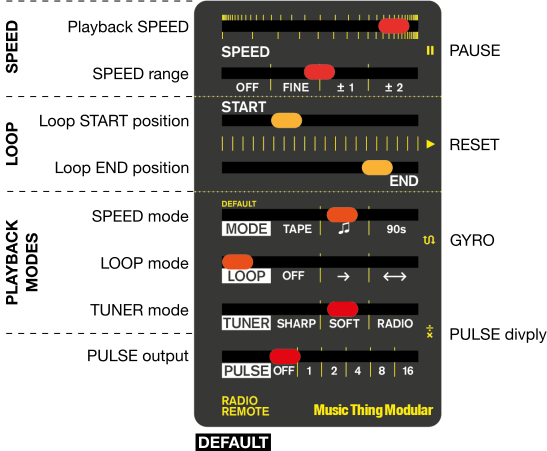
Radio Remote adds hands-on controls for speed, loop start, loop end, tuner mode, loop mode and pulse mode.
These controls are fully documented in the reference guide.
Updating an older 8mu to use as Radio Remote ←
Radio Remote is simply an 8mu Midi Controller with a different cosmetic panel. You can use it as a remote or a normal MIDI controller with no changes.
NB: If you bought your 8mu before 2026, then you will need to update the firmware to use it as a Radio Remote. Connect your v1 8mu to the web editor to update the firmware.